
Streaming apps
Add your scoreboard to Streamlabs Mobile
The easiest way to stream a game from a phone. Streamlabs Mobile is free on iPhone and Android, and streams to YouTube, Facebook and Twitch.
Before you start
- Install Streamlabs from the App Store or Google Play and connect the YouTube, Facebook or Twitch account you stream to.
- Get your overlay link onto the streaming phone. On your scoreboard home, tap the copy button next to the link under Put it on your stream. Setting up on a computer? Use Email me the setup link and open the email on the phone.
Add the scoreboard
- Turn the phone sideways. Streamlabs edits overlays in landscape.
- Tap the menu (☰) in the top corner and open the Editor.
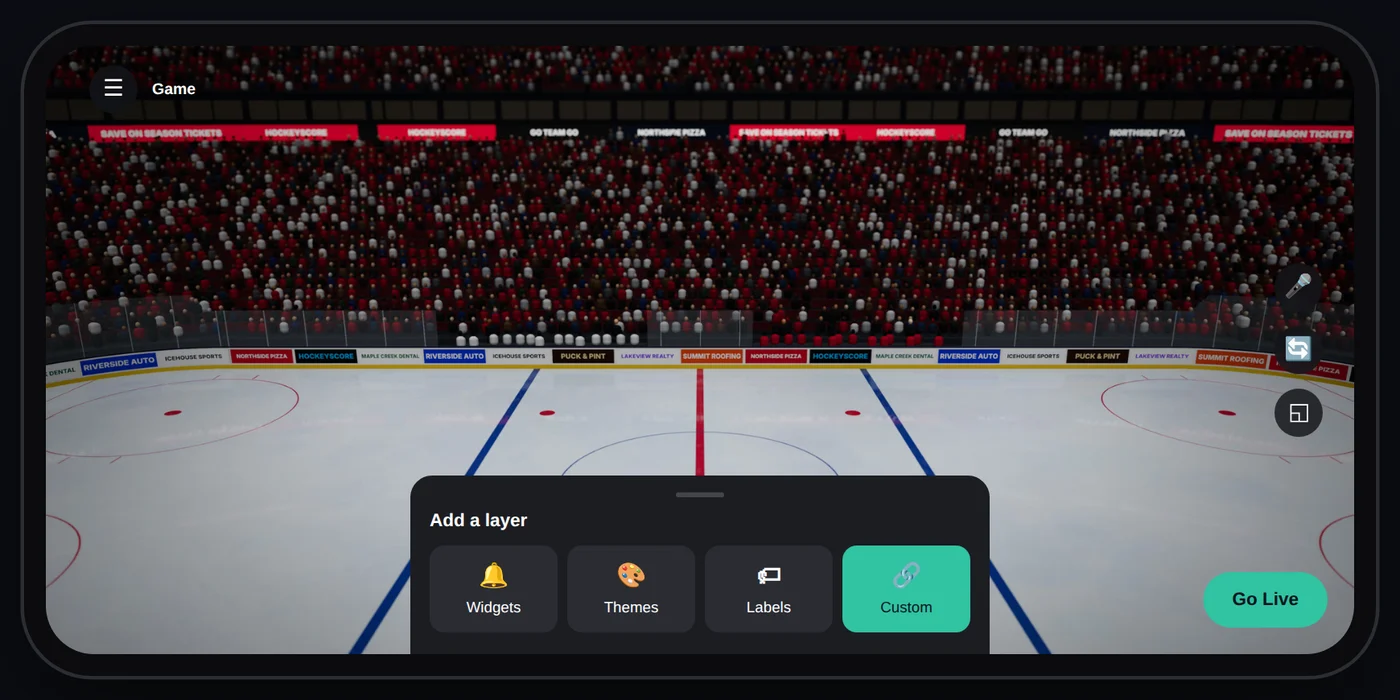
- Add a new layer with + and choose the custom option that takes a website link (it may be called Custom, URL or Web, depending on your version).
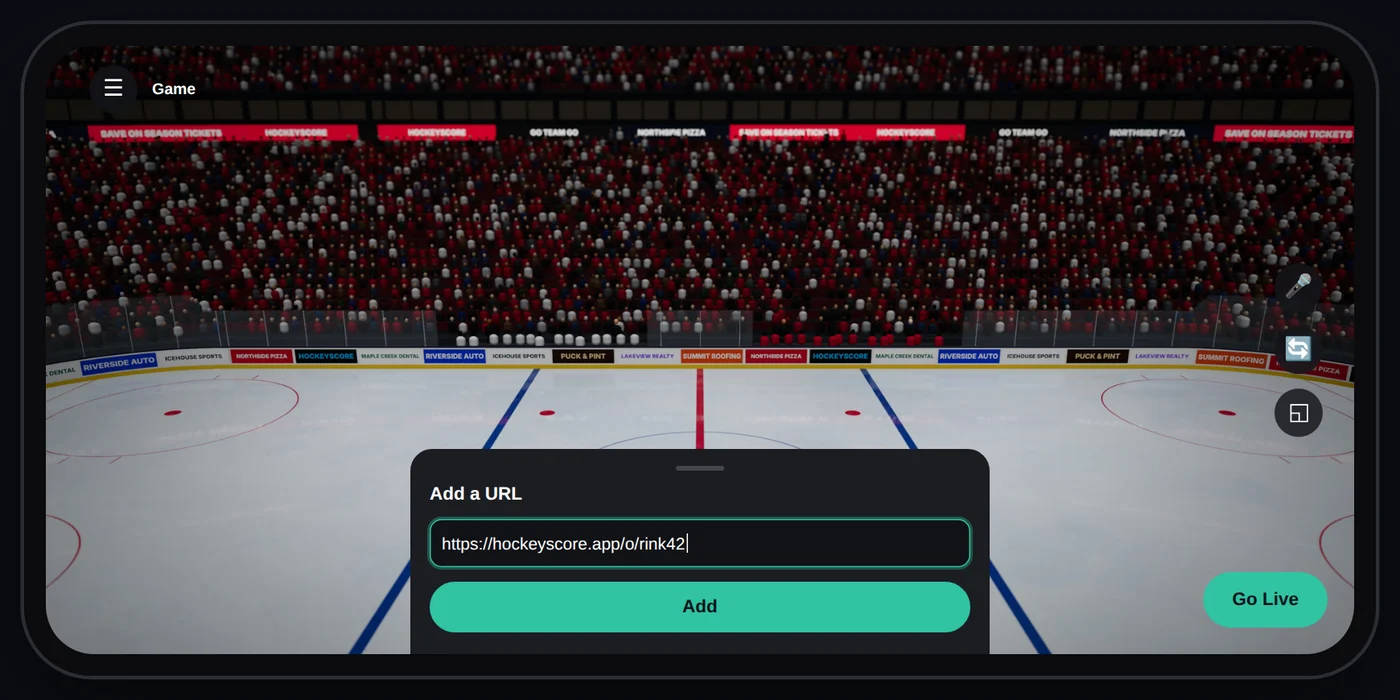
- Paste your overlay link and tap Add.
- Stretch the box so it covers the whole screen, then save.
Keep score
You can't keep score on the streaming phone while it's filming, so the controls go on a second phone. Hand that phone to a helper, or hold it yourself with the streaming phone on a tripod. See Share the controls.
Good to know
- Saving battery. Streaming uses a lot of power. Plug the streaming phone into a battery pack, and turn the screen brightness down once you're live.
- The scoreboard isn't showing after a restart. Open the Editor, check the layer is still there and switched on, and save again.
- More fixes are in Troubleshooting.