
Streaming apps
Add your scoreboard to Streamlabs Desktop
Streamlabs Desktop calls it a Browser Source. Add it once and it's there every time you go live.
Before you start
Copy your overlay link from your scoreboard home. It's the link under Put it on your stream.
Add the browser source
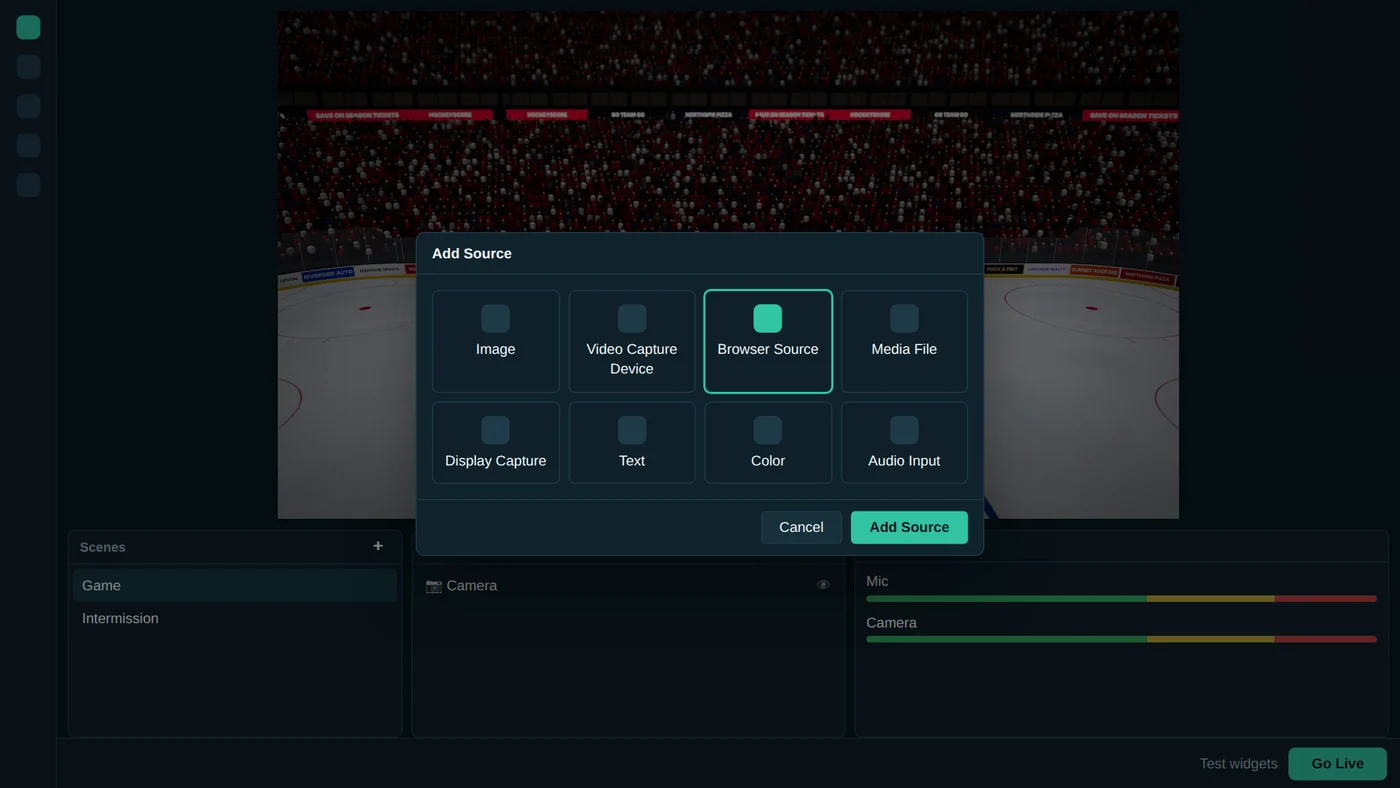
- In the Sources panel, click +.
- Pick Browser Source and click Add Source.
- Name it
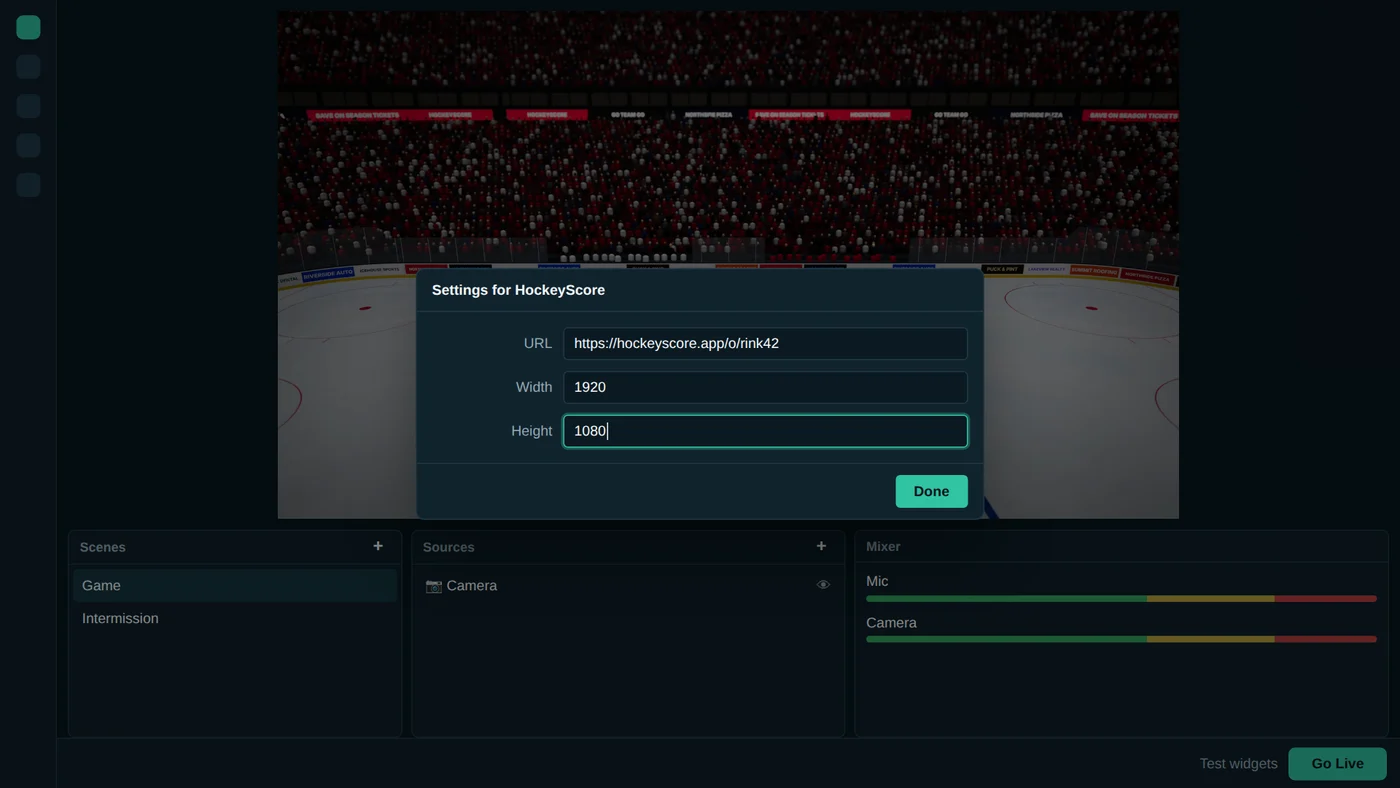
HockeyScoreand click Add Source again. - Paste your overlay link into URL, set Width to
1920and Height to1080, then click Done.
Put it on top
The scoreboard needs to sit above your camera in the Sources list. Drag it up if it landed underneath. If it doesn't fill the preview, right-click it and choose Transform, then Fit to screen.
Good to know
- Streamlabs Desktop is built on OBS, so the OBS tips apply here too.
- Got a phone instead of a laptop? See Streamlabs Mobile.
- Something not right? See Troubleshooting.