
Game day
Keeping score during the game
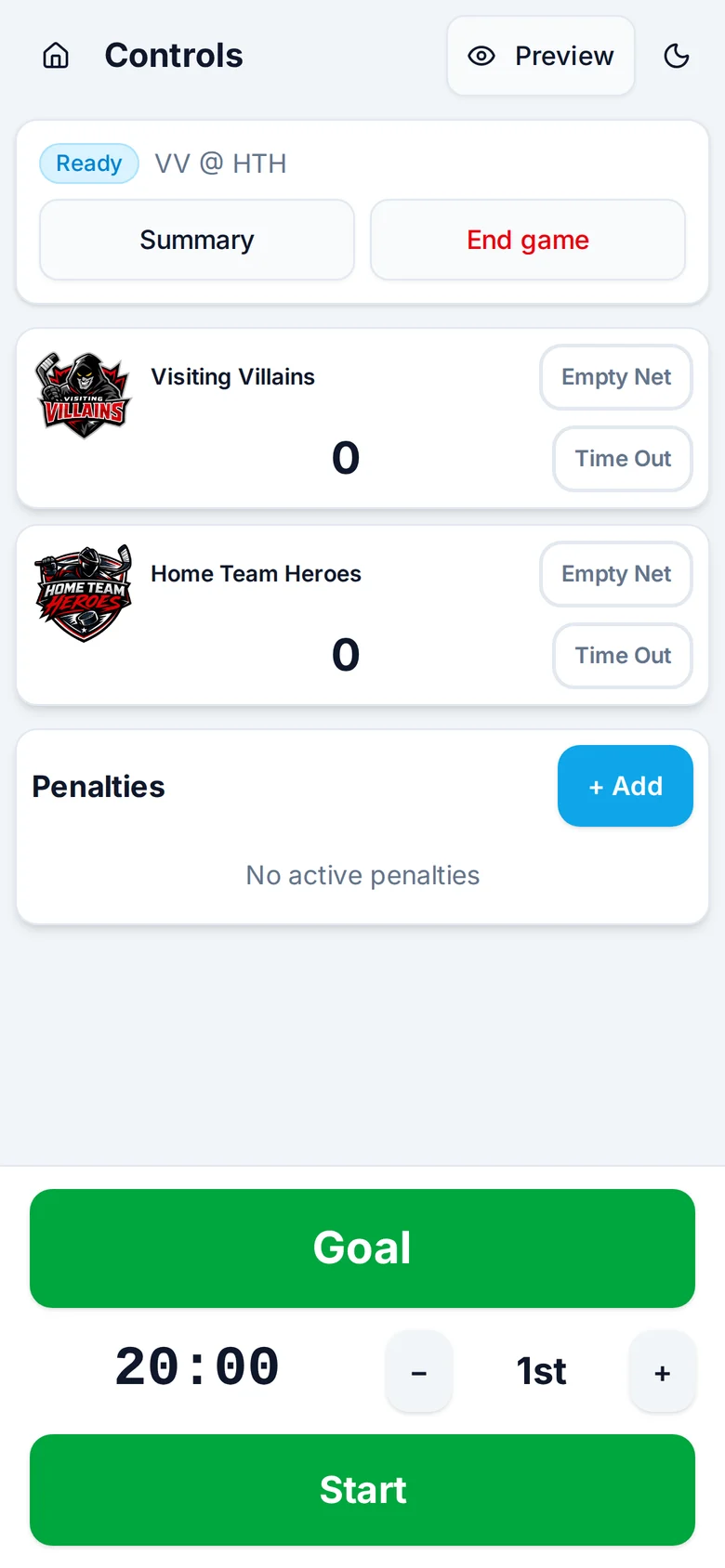
Everything happens on one screen. The buttons you need mid-play are big and at the bottom, where your thumb already is.
Goals
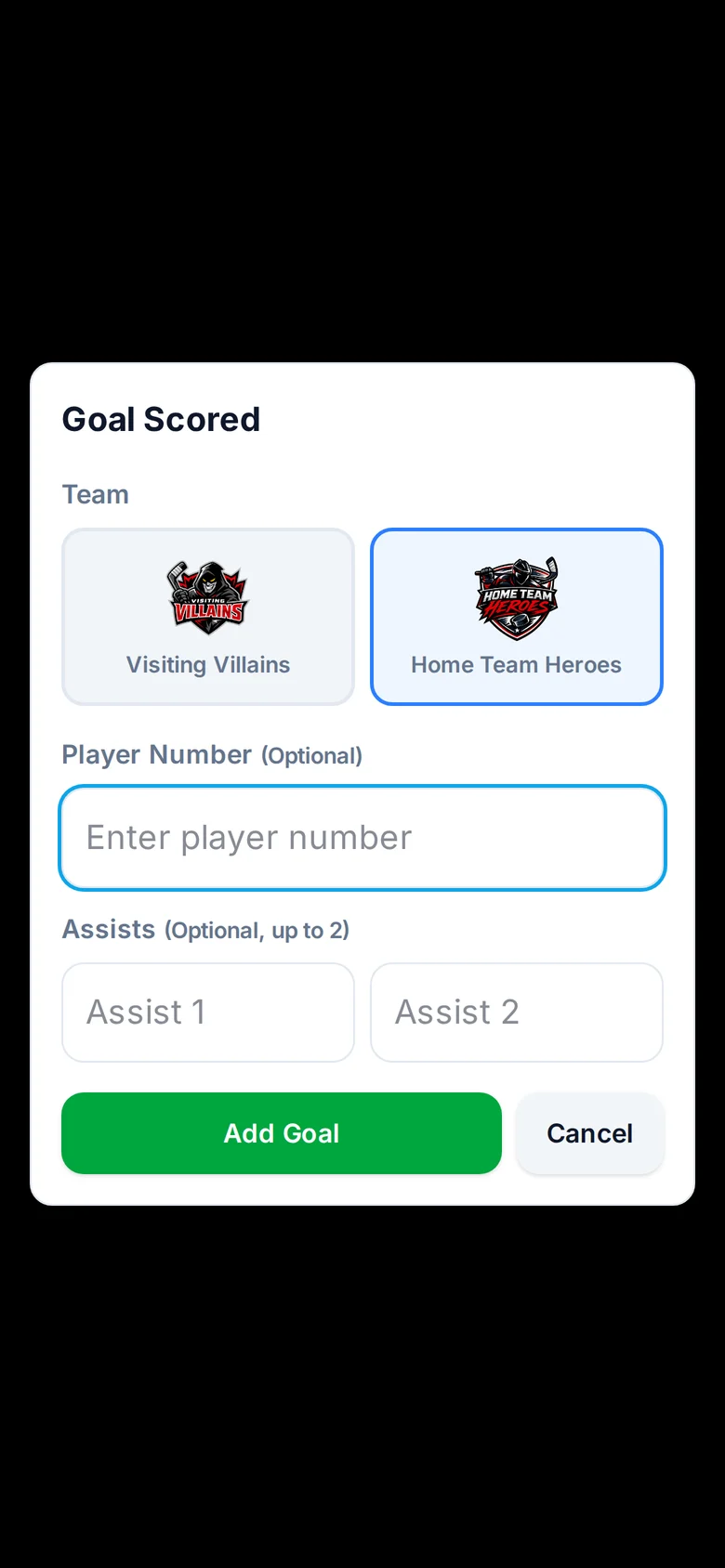
Tap Goal, pick the team, and tap Add Goal. A goal graphic plays on the stream and the score goes up.
If you know who scored, add the player number and up to two assists first. With a roster set up, the goal graphic shows the scorer's name and photo. Don't know yet? Skip it. A goal with no number still counts and still plays the graphic.
Got it wrong? Tap the team's score number to set it to the right number.
Penalties
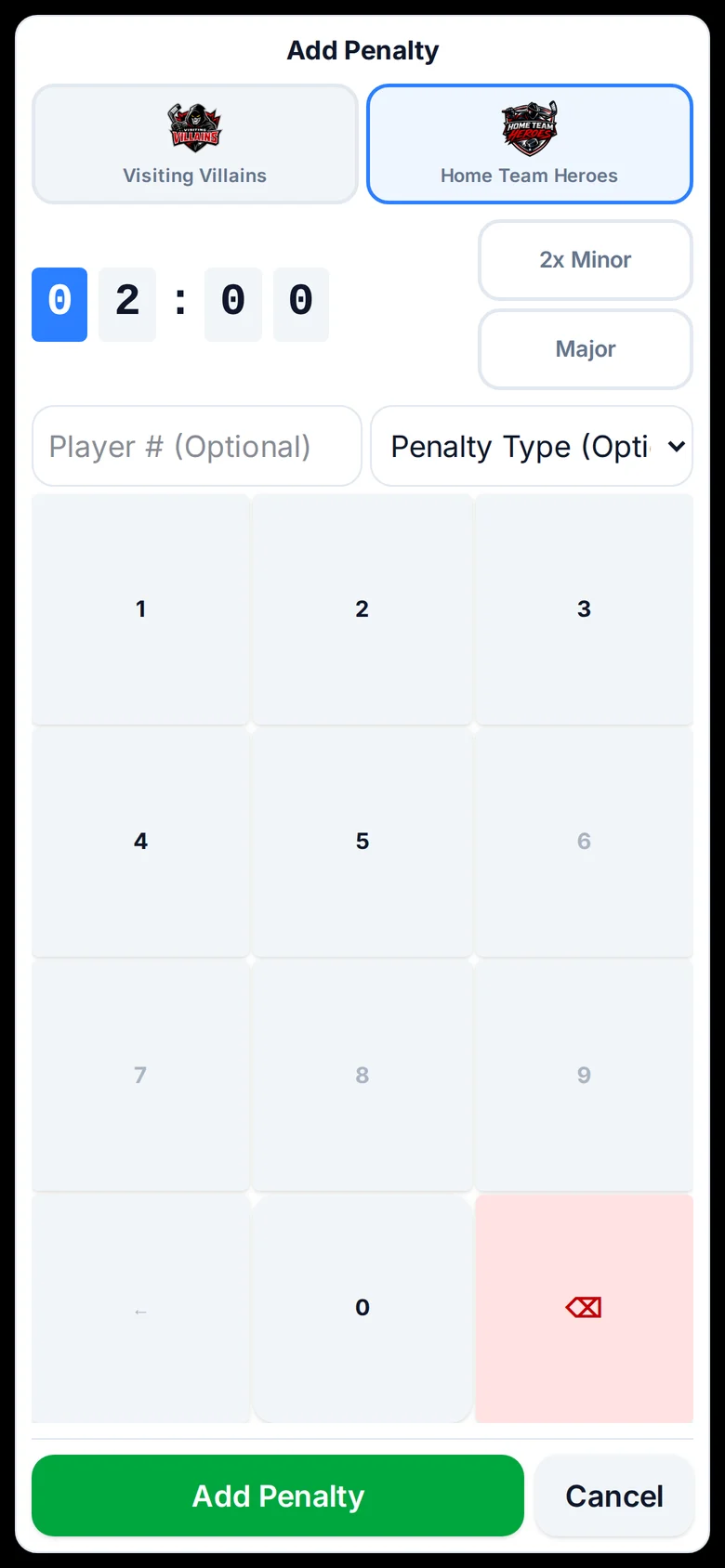
Under Penalties, tap + Add. Pick the team. The time starts at 2:00; tap 2x Minor or Major, or type another time. The player number and penalty type are optional.
The stream shows a penalty graphic, and the scoreboard shows the power play with its own countdown. Penalty time only runs while the game clock is running, and it clears when the time is up. If the other team scores on a minor, the penalty ends early, just like in a real game.
The clock and periods
- Start and Stop run the game clock. The stream's clock follows.
- Tap the time to set it, for example to match the rink clock after a stoppage.
- Use − and + next to the period to fix the period. When time runs out you'll get a button for the next period or intermission.
- At the end, finish the game and the stream shows a final summary.
Starting the next game
When a game is over, tap New game in the controls. Pick the league, the home and away teams and the period lengths, and the scoreboard resets for puck drop. Teams you've played before are in the list, logos and colours included.
Empty net and time outs
Each team has an Empty Net button for when the goalie is pulled, and a Time Out button. Both show on the stream until you turn them off.
Add the controls to your home screen
On a phone, the controls ask if you want to add them to your home screen. Say yes. Next game it opens full screen like an app, straight to your scoreboard, without the browser bars getting in the way.