
Streaming apps
Add your scoreboard to OBS Studio
OBS adds the scoreboard as a Browser source. It takes about two minutes, and you only do it once.
Before you start
- OBS Studio installed and your camera already showing in the preview. If you're brand new to OBS, the OBS quick start gets you to this point.
- Your overlay link. It's on your scoreboard home under Put it on your stream. Tap the copy button next to it.
Add the browser source
- In the Sources box, click + and choose Browser.
- Leave Create new selected, name it
HockeyScoreand click OK. - Paste your overlay link into URL.
- Set Width to
1920and Height to1080. Click OK.
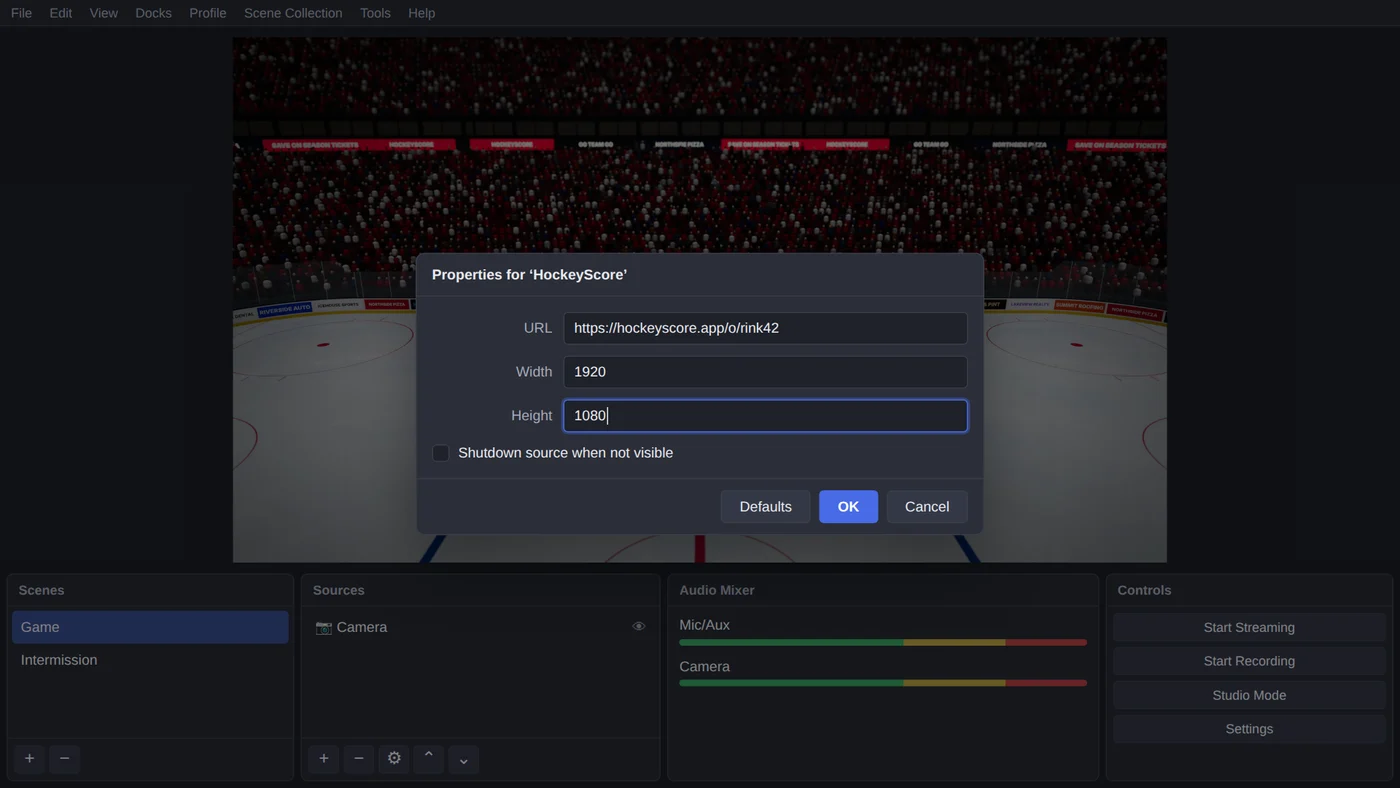
The scoreboard appears on the preview straight away, showing the demo teams until you change them.
Put it on top
In Sources, the scoreboard has to be above your camera, or the camera covers it. Drag it to the top of the list if it isn't there already.
If the scoreboard looks too big or too small, right-click it, then choose Transform and Fit to screen. To stop it getting nudged mid-game, right-click it and choose Lock.
Settings that help
- Canvas size. In Settings, then Video, a base and output resolution of
1920x1080(or1280x720on an older laptop) keeps the scoreboard sharp. The browser source stays at 1920×1080 either way. - Keep it running between scenes. In the browser source's properties, leave Shutdown source when not visible unticked. Otherwise the scoreboard reloads every time you switch back to the game scene.
- Intermission scene. Add the same browser source to your intermission scene (right-click it, Copy, then Paste (Reference) in the other scene). The scoreboard shows the period summary and sponsors by itself.
If it doesn't show up
- Nothing at all: check the source is above the camera and its eye icon is on.
- A blank or white box: the link didn't paste in full. Copy it again from your scoreboard home.
- Stuck on an old score: right-click the source, choose Properties, then click Refresh cache of current page.
More fixes are in Troubleshooting.